Sheet (ZX Spectrum Next Spreadsheet)
A downloadable Spreadsheet
Spreadsheet
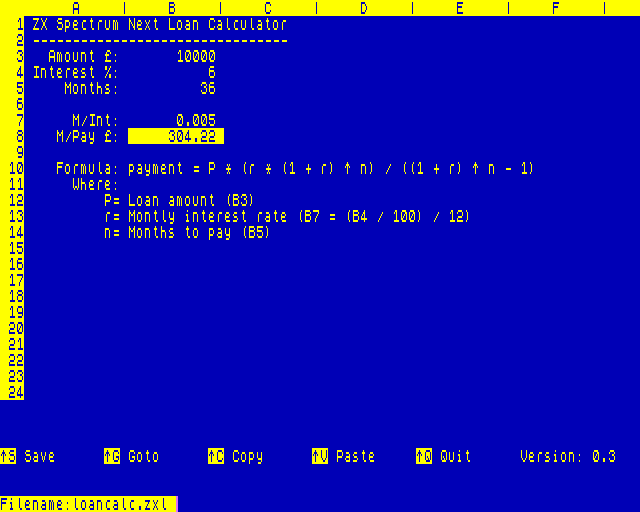
A native spreadsheet for the ZX Spectrum Next.
Launching the program
Ensure that the sheet command is in your /DOT folder on the ZX Spectrum Next OS card.
To open an untitled, empty document
.sheet
Load an existing document
.sheet myfile.zxl
- If
myfile.zxlexists, it will be loaded. - If it does not exist, a new document will be created with that name as the default.
.zxl is the recommended file extension, but is not enforced by the program.
Navigation
Use the cursor keys to move between cells:
| Key | Action |
|---|---|
⇦ |
Move left one cell |
⇨ |
Move right one cell |
⇧ |
Move up one cell |
⇩ |
Move down one cell |
Extend Mode commands
Activate Extend Mode by pressing the Extend Mode key or CTRL+SHIFT in CSpect, followed by the command key:
| Key | Description |
|---|---|
↑S Save |
Saves the current document (recommend using .zxl file extension) |
↑G Goto |
Moves directly to a specified cell |
↑C Copy |
Copies the content of the current cell to the clipboard (single-cell copy only) |
↑V Paste |
Pastes the content of the clipboard to the current cell. After pasting, the cursor moves one cell in the last navigation direction used before paste. |
↑Q Quit |
Exits the editor. You will be prompted to save if the document has unsaved changes. |
↑ indicates the Extended Mode modifier (Extend Mode key or CTRL+SHIFT)
Entering data
Data entry works like a traditional spreadsheet. Navigate to the desired cell and start typing.
- Numeric entries are treated as numbers.
- All other entries are treated as text.
- To enter a formula, start the entry with an
=. - To force text entry even for numeric values start the entry with an
'
To edit the contents of a cell, press Enter or the Edit key. While editing, you can cancel the operation by pressing Edit.
Pressing Enter while editing a cell will update the value of the cell to the new value and move one cell down.
All function names and cell references are case-insensitive ie. A1 and a1 both refer to cell A1 in the sheet.
Relative, absolute, and mixed references
When pasting a copied formula, references are adjusted relative to the destination cell unless they are fixed with $.
| Type | Example | Behavior when pasted |
|---|---|---|
| Relative | A1 |
Row and column both adjust |
| Absolute | $A$1 |
Row and column are both fixed |
| Mixed (fixed column) | $A1 |
Column fixed, row adjusts |
| Mixed (fixed row) | A$1 |
Row fixed, column adjusts |
Examples:
- Copy formula from
A1toA2:=B1becomes=B2=$B$1stays=$B$1=$B1becomes=$B2=B$1stays=B$1
Note: Clipboard operations currently support copying and pasting one cell at a time.
| Entry | Description |
|---|---|
=A1 |
References the value in cell A1 |
=A1*2 |
Shows a value double that of cell A1 |
=$A1*2 |
Column is absolute; copied across columns it still references column A |
=A$1*2 |
Row is absolute; copied across rows it still references row 1 |
=$A$1*2 |
Both column and row are absolute |
Formulas and Functions
Expressions in formulas use standard precedence rules (BODMAS/PEMDAS) and allow references like A1, B2 etc.
To operate on a range of cells, use the format A1:B2 (top-left to bottom-right).
Example:
Add all values in A1, A2, B1 and B2
=sum(A1:B2)
Range functions
| Function | Description |
|---|---|
SUM |
Returns the sum of cell values in a range: =sum(A1:B3) |
AVG |
Returns the average of numeric values in a range: =avg(A1:B3) |
COUNT |
Returns how many cells contain values in a range: =count(A1:B3) |
MIN |
Returns the smallest numeric value in a range: =min(A1:B3) |
MAX |
Return the largest numeric value in a range: =max(A1:B3) |
Simple functions
These take numeric, string literals or cell references to either type.
Example
Sine of 2.3 radian
=sin(2.3)
Sine of the value in A1
=sin(A1)
Convert a decimal value to binary string
=dec2bin(23)
=dec2bin(A1)
Convert a binary string to a decimal value
=bin2dec("1101")
=bin2dec(A1)
| Function | Description |
|---|---|
SIN |
Sine of a radian value |
COS |
Cosine of a radian value |
TAN |
Tangent of a radian value |
ASIN |
Inverse sine (returns angle in radians) |
ACOS |
Inverse cosine (returns angle in radians) |
ATAN |
Inverse tangent (returns angle in radians) |
ABS |
Absolute value |
CEIL |
Ceiling (rounds up) |
FLOOR |
Floor (rounds down) |
ROUND |
Rounds to nearest integer |
TRUNC |
Truncates decimal part |
SQRT |
Square root |
EXP |
Exponential (eⁿ) |
LOG |
Natural logarithm |
LOG10 |
Logarithm base 10 |
LOG2 |
Logarithm base 2 |
DEC2BIN |
Decimal value to binary string |
BIN2DEC |
Binary string to a decimal value |
DEC2HEX |
Decimal value to hexadecimal string |
HEX2DEC |
Hexadecimal string to a decimal value |
Complex function
Complex functions take more than one argument.
Example
If the value in A1 > 4 return the string True else return the string False
if(A1 > 4, "True", "False")
| Function | Description |
|---|---|
IF |
Select a value based on a conditional expression |
Expression
Operators
| Operator | Description |
|---|---|
( ) |
Parenthesis used to adjust the precedence of a sub-expression |
^ |
Exponentiation (power) |
*,/,% |
Multiply, Divide, Modulo |
+, - |
Add, Subtract. Addition can be used to concatenate strings |
=, <>, '<',<=,>,>= |
Relational operators |
Download
Click download now to get access to the following files:
Leave a comment
Log in with itch.io to leave a comment.